This is the first in a series of four posts about my experiences of using Google docs with my Year 10 Media Studies students, over the course of the last academic year. Each post will cover a specific topic:
- Signing Up
- Collaboration
- Assessment
- What’s Next?
Part 1: Signing Up (or a lesson in the drawbacks of being impulsive)
Signing up should have been easy, right? Wrong? At least, that is if you’re a bit impulsive like me and don’t always think things through or test things first.
Let’s begin with a short history lesson: When I joined my school over seven years ago, all students were issued with a school email account. Each year the accounts of one or more year groups would be shut down due to misuse. Rather than teaching the students about email etiquette and online responsibility the powers that be chose to go for the classic “punish them all rather than just the few” approach. For a time the accounts were shut down altogether. Now, fast forward to January 2010. What many students at my school don’t realise is that each they have a working school email account. The relevance of this little history lesson will become clear a few paragraphs later.
So, why Google docs?
I’ll let Google answer that one for me! See pic:
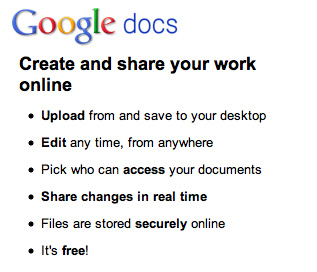
Every point used by Google to promote their cloud based editing suite is valuable but it has always been points 2 and 4 that have enticed me the most as an educator. Before I decided to use docs with my students I had made use of it sharing and editing documents with literally a handful of colleagues to hammer out ideas and plan projects. I could see quite clearly, the value that it would offer a class of students. Student’s could submit their homework online, they could work collaboratively together in real time, I could mark and edit their work as they went along – great for differentiation and there is no need to be carrying a pocketful of memory sticks around that can be easily lost. Awesome!
With all of this is mind however, when I took my class off to the computer room with the intention of getting them started with Google docs I had not fully thought it through. I can be quite impulsive at times and a little reactionary. I had read the weekend before about some great work produced by students collaboratively on Google docs and was feeling inspired. I had just started a new unit with my class, beginning with a research project. I felt that utilising the collaborative nature and real time editing features of Google docs would be the perfect way for my students to write up and present their research. So, I decided to go for it without considering one very important aspect of the whole process: signing up and email account verification!
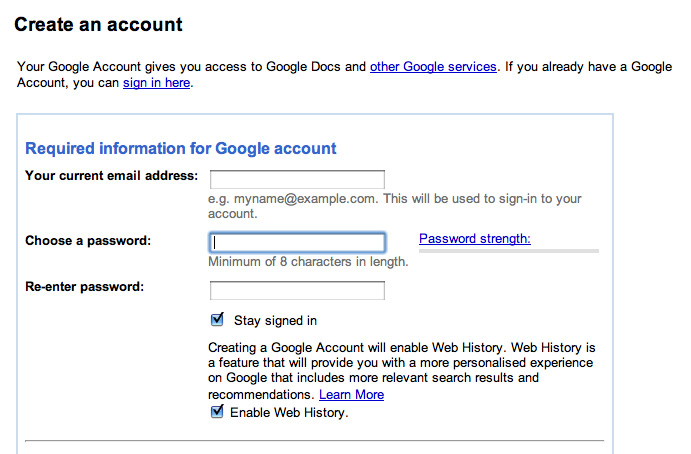
The students were typically enthusiastic about using the computers and were logged on before I could finish issuing instructions. I shared the URL they need and demonstrated how to sign up for a Google account. When my students asked: “what email address should we use, sir?” I simply replied “your own” without thinking. This was a huge mistake because web-based email (Hotmail, Yahoo, Google etc) is blocked in my school. Why was this a problem? Well, it’s not at first. Google docs signs you in automatically when you first sign up and you can start editing documents straight away. “Good times!” However, should you log out or wish to share your newly created document with anyone then you must verify your account. How is this achieved? By sending you an email, which includes a link that you must click on. The first activity I had planned was a collaborative one. My intention being to wow them with the possibilities that Google Docs offers but we were literally blocked at the first hurdle as the students I had selected to create and share documents with their peers were asked to verify their accounts. Could they access their email? No!
This is where the history lesson from earlier becomes relevant. There is considerable debate within educational communities about the value of knowledge. But I am here to advocate that “knowledge is power”. It is the knowledge rooted in the back of my mind that 1. The students’ school email accounts work and 2. Google allows you to re-associate an account to another email that saved the day for me and my students. A teacher without this knowledge, in a school that does not give its students personal email accounts would have had to give up at this point. So the next bit of this post explains how to re-associate a Google account to a different email address.
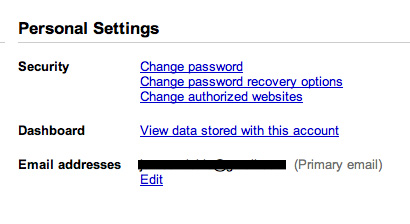
I showed each student how to access their Google account. As you can see in the image above underneath their “Email address” there is an edit option. This allows you to change the email address that is associated with the account. By getting each of my students to work through this process, associating their Google accounts with their school email addresses I was able to get the lesson back on track. They each received an email in their school email accounts asking them to verify their Google accounts. As soon as this was done they could log back into Google docs, share documents with each other and begin collaborating.
There was not as much time to work through the activity (a simple editing task) that I had set for them but many of the students could see how useful Google docs could be. I was able to get a member of each research team to create a document (presentation) to work into. The following lesson the students began to collaborate, adding to their presentation. But on this I will say no more as this is the topic of the next post in the series.
Suffice to say, while the lesson did not go as planned I learned a lot and knew exactly how I would go about this process with other classes.
So what follows is a best practice guide to signing your students up to use Google docs:
- Create a set of instructions that can be shared / displayed. (Could even be put onto VLE if you have one.)
- Have your students use an email address that can be accessed in school. (If you are a school that uses Google apps then this shouldn’t be an issue.)
- Have them all log out immediately, log into their email accounts and verify their account at the same time.
- Have them all create a document and share it with you so they all learn how this function works.
- Give them a short task to do with one partner to get them used to the idea of documents updating at the same time. (I use a short writing/editing task – each student writes their own paragraph then edits their partners in real time.)
To conclude this first post about my experiences of using Google docs with my students, I would also recommend that you find a colleague to use Google docs with before you use it with your students. This was a great help to me as it allowed me to have a full understanding of how to create and share documents so that I could get my students creating and collaborating immediately. It is also useful to get one student to sign up on a student machine so that you can investigate any potential pitfalls. If your school is like mine, the student machines are set up differently to staff laptops. Had the process of signing up been more smooth my students would have walked away from the lesson with a collaborative document that they had both edited. In the end this was only partially achieved with this class but worked successfully with subsequent classes.
Next time: Collaboration.