Why this Apple fanboy loves his Android phone

Android Phone

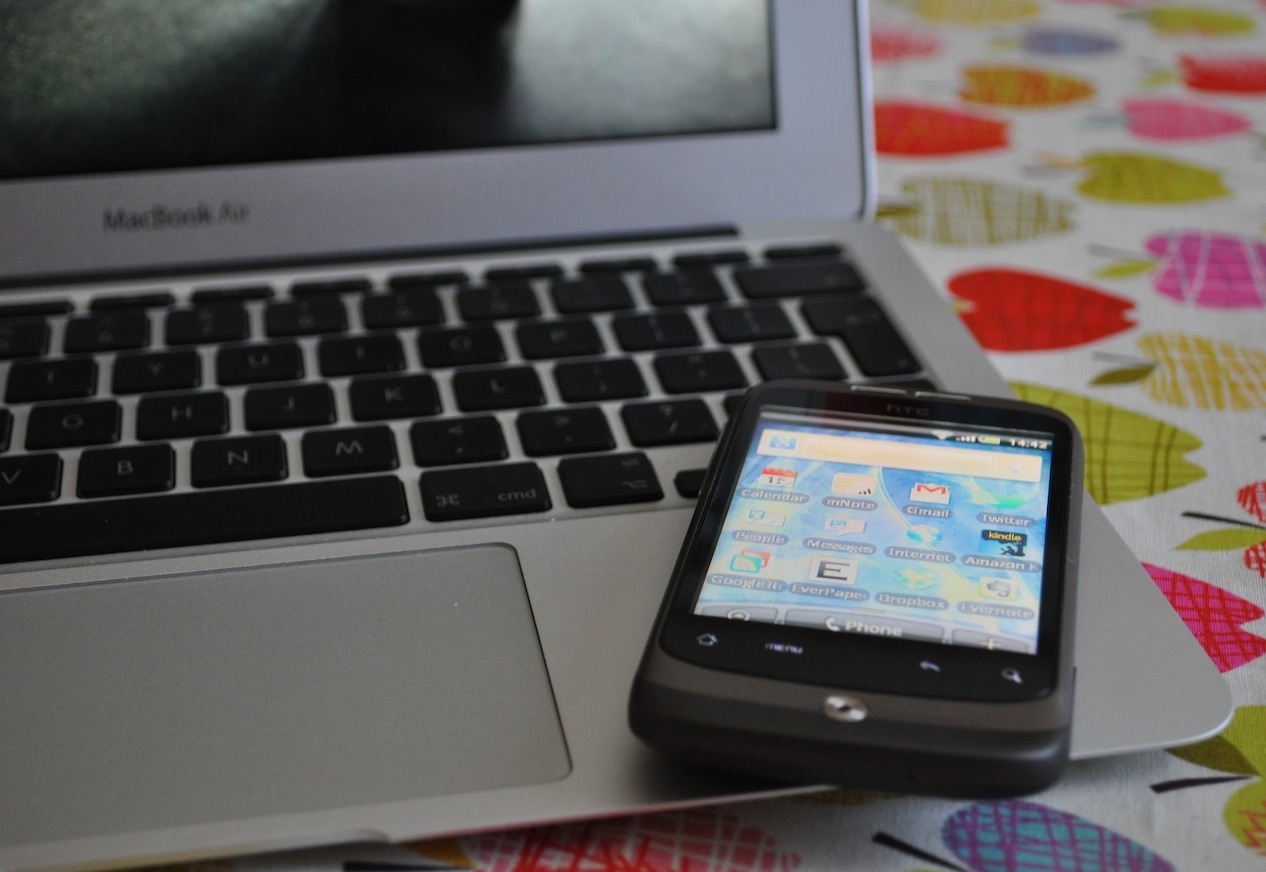
Some of you will know that I am quite the Apple fanboy. I currently own a MacBook Air, MacBook Pro (my second one) and an iPod touch. Having blogged twice about the apps I have installed on the iPod (during the early days of this blog), I felt it was time to confess to the fact that the iPod has been relegated to the status of ‘portable entertainment centre’. It now gets charged and used on long journeys mainly having been replaced by a HTC Wildfire – my ‘productivity centre’. Even with my deep love of all things Apple, I am not missing the iOS user interface one bit. The Android UI is just as pleasing and the phone was half the price of the iPhone 4.

Mobile phones and I

While I am a self-confessed technophile I resisted owning a mobile phone for a long time. I love technology but I felt that having a mobile phone would be too big a distraction and would put me in a situation where I am too contactable. I did not want to feel guilty if I was called and chose to ignore it. I knew that I would because I view my time as being extremely precious. However, I found myself frustrated using the iPod touch due to the lack of 3G connectivity. I didn’t want to text or make calls but it was highly frustrating to have to rely on finding a wifi signal when I was out and about. The Wildfire was my compromise then, not invoking a terrible cost to my pocket, I set up a PAYG account with Orange and away I went.

I have kept myself sane by putting in place a number of rules as to how I use the phone. All notifications are switched off so that I am not distracted. If I am doing something really important, I turn the phone off completely. I do not give out my number; only a small number of people have it. And finally, I only reply to text messages if it is really necessary. The people who do text me know this about me so I don’t feel any guilt if I forget to reply.

What I have gained by owning the phone is immense. It is my personal productivity machine; fully integrated into my day to day life. To illustrate this I am going to talk through the 10 most used apps on the phone:

The five apps I can’t live without

Twitter for Android – The main reason I bought the phone was to engage with my Twitter PLN at any given time. I tried a few apps including TweetDeck and for a while Twidroyd but have happily settled on the official app. In my opinion as good as any third party and it’s OS and iOS equivalents. I can keep up with the various streams, tweet, retweet (new and traditional methods), DM, search, even manage my lists which you can’t do with Twitter for Mac.

Everpaper – As there is no native Instapaper client for Android, I experimented with a few third party apps. Everpaper is by far the closest in matching the experience of the web and iOS apps. It is feature rich while managing to maintain that all so important minimal UI. I save a lot of reading material to Instapaper – blog articles, essays, reports… the list goes on. If I am not reading a book I will catch up with my Instapaper during my journey to work. I will also read it while queuing at Costa Coffee or any other time where I am forced to be idle and do not have access to my laptop.

Kindle – I have been totally converted to the value of being able to sync the book I am reading across multiple devices. I mean, it makes so much sense right? So I now have the Kindle app on my MacBook Air, MacBook Pro and Android phone. I don’t think it will be too long before I buy a Kindle as well. I use the Android app almost every weekday morning during my journey into work. So far I have read the entirety of the following books on it:

Focus by Leo Babauta
Poke the Box by Seth Godin
Keeping it Straight by Patrick Rhone
Out of our Minds: Learning to be Creative by Ken Robinson

I am about to start reading Learning Futures: Education, Technology and Social Change by Keri Facer.

Calendar – This is one of the few built in apps that I use. Synced with Google calendar; all appointments, meetings and urgent stuff are added with ease. It is the only app where, when necessary, I have the notification reminders turned on for urgent deadlines, meetings and appointments. Things that it would be absolutely detrimental for me to forget. However, I do not add my ToDo list to my calendar. My ToDo list is a text file which I keep in nvALT; synced with Simplenote. As a highly organised and motivated person, there is rarely anything in my ToDo list that I would forget to do any way.

Gmail – Again synced with my Google account I rely on this app to check my personal email at lunch time. I designate times for a number of specific tasks and this is the case with email. I check my work email first thing when I arrive at work and again at the end of the day. I check my personal email first thing in the morning and at lunch time. I try to avoid looking at email in the evening unless I know there is something urgent I need to reply to and did not manage to do so during the day.

The five apps which are useful at very specific times (but not essential)

Internet Browser – I use the pre-installed web browser. I use it mainly on an ad-hoc basis, for example, if someone shares a link in Twitter, it kicks me out to the web to view the image etc. Other than that I rarely use it.

Google Reader – As previously mentioned I allot specific times to a number of tasks. Task number one every morning is to catch up with the RSS feeds I subscribe to. I read the short ones and save the longer articles to Instapaper. I only use the Android app if that didn’t happen for some reason and on the rare occasions I am not reading a book and my Instapaper is empty – i may save this activity for the journey into work.

Evernote – As eluded to earlier, I am using Evernote to maintain my organisation as I work towards an Masters in Education. The mobile app has been used for two specific tasks. Taking photos of long extracts from books where I have not been able to access and electronic version and to take photos of slides at meetings/conferences. With the auto-sync it is a fabulous tool. See Doug’s post here about how he has used it.

mNote – As with Instapaper there is no native Simplenote app for Android. mNote is my app of choice. I occasionally need to update something and so will do it here. My use of this app has decreased since I bought my MacBook Air. Due to the Air being so light, I am tending to now take it to meetings – using nvALT to make notes instead.

Dropbox – This one needs little explanation. I want access to my documents at all times. My most common use is to read PDF files which I can’t access from Instapaper or the Kindle app.

The one app that I could live without but I’m glad I don’t have to

Swiftkey Keyboard – The built-in keyboard to the Android OS was not very good and this was one of the first features that I changed. It is the only app I have installed where I have handed over money but it was definitely worth it. Swiftkey has (IMO) the most accurate and useful predictive text I have experienced between using the iOS keyboard on my iPod touch, an LG touchscreen phone, and the built in Android keyboard. Part of the reason it works is that the keyboard’s UI is so clear and not over-sensitive that it is rare to make mistakes when typing. This combined with excellent ‘learning’ algorithms, Swiftkey predicts correctly most of the time.

iPod touch with 3G?

I have been asked by a few close friends who have had to endure me waxing lyrical about the phone whether I would buy an iPod touch, should it be released with 3G. After all, I make little to no use of the traditional phone features. To be honest, I don’t think so. I have become accustomed to the Android OS and until Apple includes something in iOS that is so revolutionary, it makes the Android OS obsolete, I will be sticking with what works for me. Besides, I’m a firm believer in the ‘one thing well’ philosophy. My Android phone does productivity really well. My iPod touch does entertainment really well. I’m happy with that.

Beware Walled Gardens – Part 2

Wheel

This post is the second in a four two part series, you can read part one here. Having set out a case for social networks in place of VLEs in part one, one of my other criticisms of learning platforms is that many of the tools they come pre-loaded with are simply not up to scratch when compared to the myriad of tools freely available on the World Wide Web.

Collaboration (and a healthy dose of assessment for learning)

Google Docs does collaboration effortlessly and in genuine ‘real time’. This makes it far more powerful than its competitors.  I spent more than two years wrestling with the wiki module in Moodle before I made the move to Google Docs. I have never looked back since. The fact is that real time collaboration is far more meaningful for students. They feel empowered by the fact that they can make instant changes instead of having to wait in turn. This has been my main criticism of Moodle, many of the tools lack the instancy that I and my students have come to expect, particularly when it is available in other tools on the Web. I can’t speak to what Diipo will offer in this area but as an avid Google Docs user I can’t see it making me want to switch.

What’s more, as I have already chronicled on this blog, Google Docs offers excellent opportunities for assessment for learning. I use it on almost a weekly basis to develop my students’ peer and self-asasessment skills. I also try to assess as much work as possible using it at the formative stages. My students really enjoy using it.

Oliver Quinlan has also blogged about his use of Google Docs for collaborative assessment. In his concluding comments he discusses the notion of students developing their own workflows. This is an interesting concept, which I insert here, because I have had similar experiences. The wiki module in Moodle is quite cumbersome and in actuality rather than promoting collaboration, inhibits it. Google Docs offers multiple ways for students to collaborate, discuss and edit their work including a simple back channel. My students have thrived using Google Docs and I have found myself rethinking the way I plan these sorts of activities, trying to allow them to tread their own path.

As for security, there is little to be concerned about here. Documents are private by default and can be shared and unshared at the author’s discretion. One of the first things that I discuss with my students is the benefits and potential hazards of sharing information with others, particularly publicly. The benefits of sharing documents though are clear and I can’t think of one collaborative tool offered within a VLE that could generate or reproduce the level of creativity displayed in this video:

A range of apps with infinite possibilities

There are a whole bunch of other useful Google tools that your students can harness via the World Wide Web that won’t be found inside Diipo or Moodle. Lets start with the cornerstone of the web: Search. While some will argue that as the teacher I should curate resources for my students, which I could link to from within the VLE, I would rather teach them to make better use of Google’s excellent search engine. Rather than me trying to write about it, hop on over to Ian Addison’s blog and let him show you some of the hidden tools that can make Google search a highly valuable experience for learners.

Another tool that Google offers is Maps. For this one I’ll let Tom Barrett’s blog do the talking. He made excellent use of it during all that snow we experienced last year.

Nearly all Google apps (Scholar, Books, Earth, YouTube) offer valuable learning opportunities but none are tied down within a learning platform. They are free and available online. The only thing that will stop you using them is your imagination and possibly your schools internet service provider (you might have to get them unblocked). Every Google app I have used with my students has worked well, I can’t say the same for some of the tools I have tried in Moodle.

If you want to get more out of using Google apps with your students you should definitely check out Richard Byrne’s guides and tutorials on his blog. Or check out the excellent range of teaching ideas for Google Search, Docs, Forms, Maps and Earth from Tom Barrett’s Interesting Ways series.

It’s not all about Google though, there are many other apps out there that are worth using with your students. One I use a lot is Lino it. Lino allows you to add sticky notes to a canvas. It is great for starters, plenaries, homework. I can begin a discussion with it in one lesson and then re-use it for homework the next. The principal of mind-mapping or generating ideas could be done in a forum on Moodle I guess but it can’t be re-ordered afterwards, it can be reused in half as many ways. I have written about Lino in more detail here.

In a recent Moodle training session I delivered I used Lino to get feedback at the end. The 16 teachers who attended were more wowed by Lino than they had been by everything we had covered in Moodle. I wonder if its because it took them less than two minutes to figure it out. Shouldn’t VLEs be that easy?

Another fantastic tool is Voicethread. It allows you and your students to comment on text, audio and video, giving you something that can be referred back to later and, like Google Docs, is fantastic for formative assessment. Check out what David Mitchell and his Year 6 class have been doing with it at Heathfields.

Is a learning platform necessary?

I can already see that one of the responses levied at me will be: “Having a VLE doesn’t mean you can’t make use of these tools, you can link to them or embed them within it.” However, the notion of adding or embedding links within a VLE makes me ask: Is the VLE necessary at all? If I’m going to go outside of the VLE to find tools that I actually want to use and believe that my students will enjoy, can’t I curate those on a well managed website or a blog. Why do I need to invest in VLE to do that?

And in the current climate, with funding in education being the way it is, would I not be better off encouraging staff to take a pick n’ mix approach to IT based tools rather than buying into a heavy duty content management system that needs to be paid for (there are servers that need to be maintained after all) and having to employ someone to look after it? When that person is let go because the school can’t afford to pay them anymore, who is going to help fix broken VLE pages or modules? If Google Docs has a problem there are a whole team at Google who will sort it out and it won’t cost the school a penny.

Natalie Laferty responding to part 1 of this series on Twitter yesterday shared this post with me. Two students, at the University of Pennsylvania, created their own learning platform in response to their dislike of Blackboard, describing it as: “overloaded with features and dreadfully designed, making simple tasks difficult”. Perhaps, that is part of the problem; VLEs are suffering from ‘feature bloat’. If they were stripped back they might have more of a purpose.


In part three: blogging, file sharing and the importance of the hyperlink.

Image by James & Vilija on Flickr.

Notational Velocity – Freedom To Write!

Very recently, Leo Babauta (he of zenhabits.net and mnmlist.com) published a post about his use of the free Mac application Notational Velocity. In the post he discusses how the app has become his number one writing tool. I also mentioned NV in a recent blog post and even though I have only been using it for a few weeks, I find myself using it far more than I expected to. I began by using the app to make notes and simple lists but have found myself drafting blog posts, letters and recording ideas that I can return to later. Therefore, I felt that I would offer some further refelections and explanation of why I like the application so much.

Notational Velocity is one of the most uncomplicated and yet most powerful tools I have made use of.

Simplicity

First and foremost it was the simplicity of NV’s design that grabbed my attention. The user interface boasts a clean writing space, free of the clutter you find in so many desktop text editors. There are no buttons as the app relies on simple search operators and a series of built in shortcuts (not an extensive list) to operate. At the top of the app is the location bar (which you can return to at any time by clicking cmd-L) – here you add new notes (type a title and hit return) and/or search for and within notes. ‘Search’ functions much like Google instant, sifting through your notes, revealing the results as you type. Below the location bar is your list of notes, sortable by ‘title’ or ‘date added’. And below this is the note body, an open space, ready to be filled with text and nothing else. I, like Leo, have expanded this area to make it more useful for writing.

Beneath the simplicity of the UI are some very straight forward but useful inner workings. By entering your Simplenote username and password, notes are synced to your Simplenote account. It’s free and updates regularly. Also, built into the app is an auto-save function meaning you never have to worry about losing what you have written – I have mine set to sync every minute as I write at quite a rapid pace. Finally, you can (if you wish) tweak features like the typeface and font size. However, I was more than happy to stick with the defaults when after starting up the app for the first time I was overjoyed to be greeted by Helvetica, size 12.

Power

Woven within the simple exterior and inner workings of the app, NV holds immense power: the power to free you from distractions, allowing you to focus on your writing. As I’ve already mentioned my original intentions were to simply use NV to keep lists and notes that I could mail to myself or expand upon in Google docs. However, the app has become far more than a simple note making tool. I am using it to write almost everything – at least in the early draft stages. Why? Becuase the simplicity of the UI allows me to focus on the content of my writing. Having resized the app from its default setting I have created a focussed space for me and my thoughts. It is lovely to get my ideas down, free of the tools and buttons used to tinker with font size or to insert images. My time and attention remain firmly focussed on the task at hand: writing.

After just three weeks I am now using Notational Velocity for the following:

Notes

  • Mentor meetings – with my line manager and those that I take during meetings with my own mentees
  • Subject Leader meetings
  • Department meetings – my prepared notes plus those I add during the meeting
  • HTML code snippets – that I use in my blog posts

Lists

  • Work To Do – a constantly updated list of day-to-day tasks
  • To Read – a list of books I wish to eventually buy/download and read

Thoughts and ideas

  • Blog ideas – a continually changing list of potential posts that increases and decreases as I have new ideas and publish posts
  • Educational ideas – possible activities, uses for tech etc, that are not yet fully formed but have potential for development

Blog posts and other writing

  • Blog posts – currently, I have 4 blog posts (not counting this one) roughly drafted
  • Letters – I drafted a recent news letter and am currently recording notes for a second installment to be sent out at the end of term
  • Resources – I am also part way through drafting an exemplar response to an an activity I plan to assign my Year 10 English class

And that’s the thing, I really have started using NV for everything. I feel liberated, free of distraction, free to focus on my writing. Added to which I have become even more productive, writing everything from within one space – no switching between apps for different tasks. I do it all here, only moving to Word or Google docs when there is a need for formatting or the addition of other media. Those (for me at least) are the after thoughts; the window dressing – it’s the words that do the talking!

In a world dominated by tools and products that allow you to do multiple things at once, Notational Velocity is a reminder that sometimes simple is best.

Perfect ‘Simple’ Note Making

Simplenote

I’m always looking for ways to improve my productivity. Having been an early adopter of both Google Calendar and Google Tasks, I have felt for some time, that there was a link in the chain missing. While both apps have the ability to serve as a place to write and store simple lists, I don’t feel that their UI’s lend themselves to this function very well. For me, Google Calendar and Google Tasks are about events that are in the future: days, weeks and months away. Between them I  schedule meetings, presentations, important tasks and events; input key dates from the school calendar such as parents evenings; and perosnal events like dentist appointments and birthdays.

What I wanted, was a tool in which I could keep and access my day-to-day ‘to do list’. Stuff like email Leah’s parents to say how well she is doing or finish marking my Year Tens’ writing assessments. And I wanted it to allow me to record random thoughts, blog ideas; to keep a list of books I wish to read; and to take notes quickly and efficiently in meetings. What would be even better if these notes could be synced in the cloud and I could access them on or offline wherever I was.

Que: Simplenote; Simplenote for iPhone; mNote for Android; and Notational Velocity.

These four tools/apps have provided me with the perfect ‘simple’ note making process that I have been searching for. These apps working in tandem truly represent what mobile sync was created for and the integration is seamless. Here is a break down of how this set up works (for me).

Simplenote – To get started you need to create an account. Like many apps and tools today this process is simple and efficient. Signing up allows the magic to happen providing the cloud based storage and syncing functionality for your notes. If you’r connected to the internet, got a wifi connection or are on 3G your notes will sync so no matter where you are or what device you have at hand you can check, add to, edit and delete your notes. Once you are signed up, you can move straight on to downloading the iPhone app.

iPhone – (iPod touch in my case) – The app is as quick to download as it is to sign up for the account. Once installed you are greeted by a series of helpful notes that are waiting to help you make the best use of Simplenote. The UI is clean; adding notes is a synch and while you are connected to wifi/3G your notes will sync frequently. Therefore there are almost no buttons to be clicked including no save button – it is simply not needed. Once you have added your account info you are away. I think that the native app has the most pleasing UI and most seamless functionality so I make use of it around the house, giving my HTC Wildfire a rest.

mNote – I also needed to be able to make and access my notes while at work and with no native app for Android I searched the Market and found mNote. It was as quick and easy to install as the iPhone app and while it is a little rough around the edges in the UI department, it certainly makes up for it in ease of use. The white on black interface displays well on my HTC Wildfire’screen and has become one of my most used apps after returning to school this past week. I have used it in numerous meetings and even recorded thoughts and ideas on the fly during lessons as they have occurred to me.

Notational Velocity – The final piece of the puzzle was to find a desktop app that I could use to access my notes while I was at my school desk or working at home. This would allow for copy/paste functionality and for me to continue to be able to make notes whenever they occurred. Notational Velocity offers an extremely lite client with a great UI (a common theme amongst Simplenote apps!) and boasts an impressive list of keyboard shortcuts (included as a pre-installed note) making it very easy to use. I have already used it for taking notes in longer meetings and even wrote the first draft of this post with it.

Like Google Calendar and Google Tasks before it, Simplenote has quickly become a staple of my day-to-day routine. What do these tools have in common? Great UIs; cloud based sync across multiple devices; and ease of use. A winning combination every time!

Creating Desktop Apps With Fluid

fluid

My best and most recent tech find for Mac is Fluid. Fluid is an application that allows you to create standalone desktop versions of your favourite web apps such as Gmail or Twitter. Neither of these appealed to me as I have Gmail synced with Mail on my Mac, and on my iPod Touch (I also sync Google Contacts, Google Calendar and my school Outlook account) and I use TweetDeck to keep up with my PLN.

However, there were some web based apps that I felt would be great to have on my desktop due to the fact that it would be good to be able to view them within a separate interface. What’s more after doing a little more research I found that if I used Fluid to create apps I would be able to make use of user scripts to tweak them – that sounded great, so I decided to begin with Google Tasks as I am always looking for ways to improve my organisation and productivity.

Google Tasks

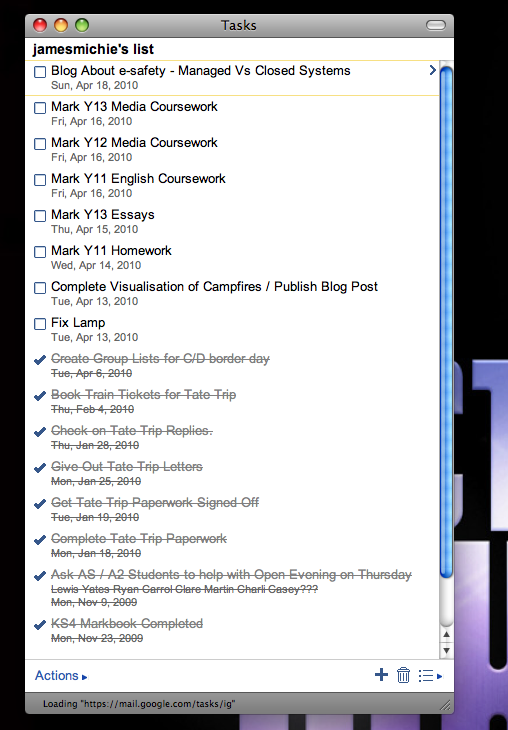
And here it is. It looks clean, signs in automatically and everything works: Adding tasks, adding info, marking when complete, syncing with Google Calendar and therefore Ipod touch.

tasks

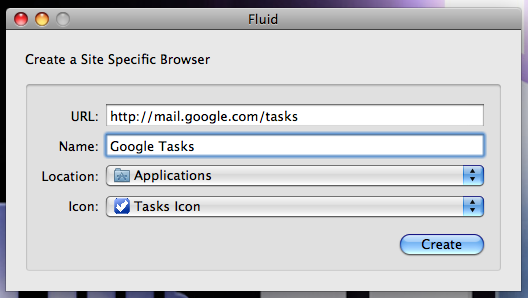
If you would like to do this you need to download Fluid. Once installed, open Fluid. You will see a dialog box (see below) into which you need to type or copy/paste the following URL: http://mail.google.com/tasks. Name the app Google Tasks. Keep the location as Applications. Download an icon to use, I chose one created by Max Headwound on Flickr (image below), found on the Flickr: Fluid Icons Pool. Then click “Create”.  You will see a new dialog box asking you to launch the app. Voilà, you are done!  You can then drag the app from the Applications folder to the dock.

fluid new app creation

tasks icon

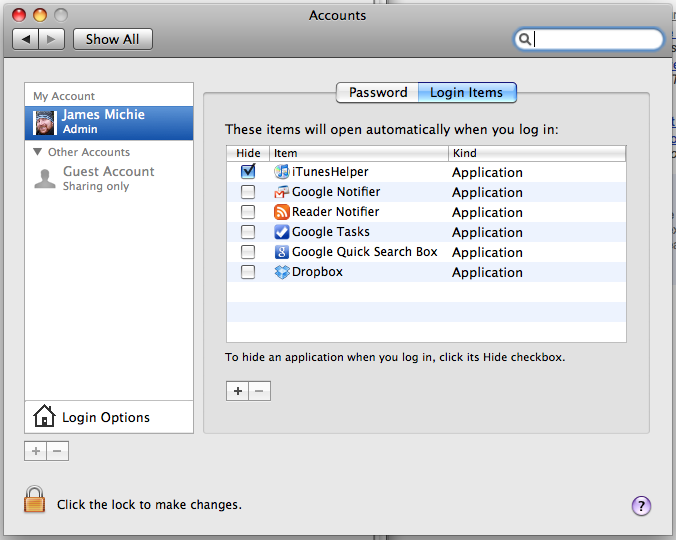
For ease of use I also added my newly created Google Tasks app to my login items so that it would load automatically when I boot up my Mac. To do this go to System Preferences / Accounts / Login items / Click the + symbol and select the Google Tasks app from the Applications folder.

login items

There are also some nice icons available at IconsPedia, choose the icon that suits you! As a Mac user image is important to me so selecting the right icon was as important as choosing which web apps I would turn into desktop apps. My next web based app that I use every day was Instapaper.

Instapaper

The process is the same as before using the following url: http://www.instapaper.com/u. If you have not used Instapaper before, I highly recommend it. It makes up an integral part of my web workflow, something I plan to write more about in a future post.

Instapaper allows you to store web pages and articles that you find to read later. It makes use of a bookmarklet to do this but if you are using the beta build of Google Chrome you can use the Instachrome extension. I have been using this extension for almost a month now and it makes adding pages to Instapaper a breeze.

Instapaper comes into its own if you have an iPod touch as the articles can be synced for offline browsing. As a serious user of Instapaper I recommend the pro version, I use folders and it helps to have them synced, saves having to repeat actions later as everything can be done from the iPod.

Here are the results of setting up Instapaper with Fluid:

instapaper

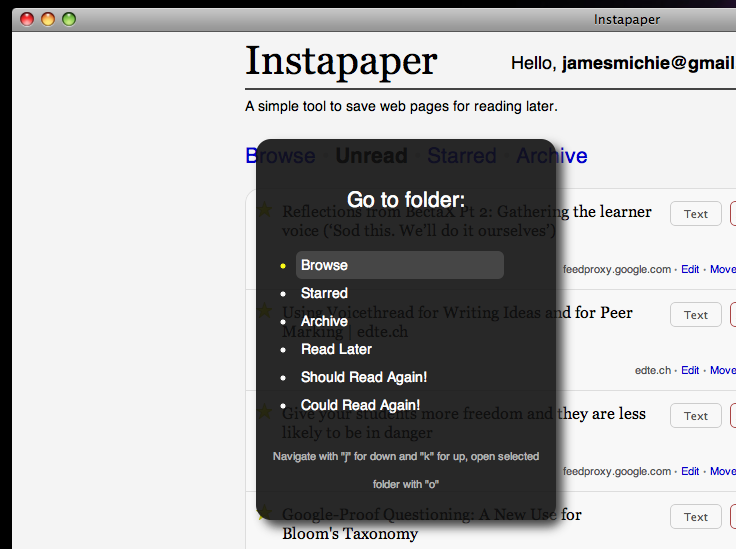
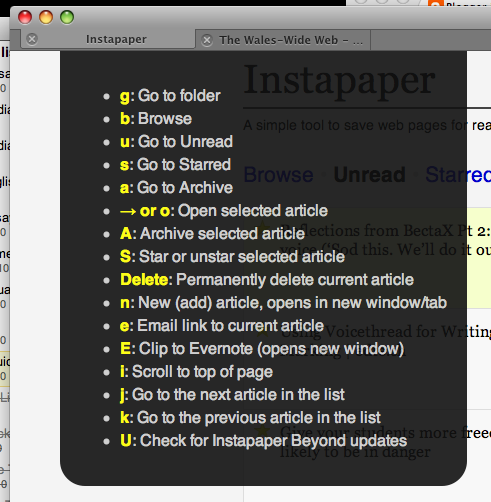
I didn’t stop with this one in simply creating the app I also installed a user script called Instapaper Beyond. It’s a script for Fluid created by Brett Terpstra which adds keyboard navigation and some special features. For example: (alt+g) brings up the “Go to folder” menu – just one of the very useful functions offered in this script.

instapaper beyond go menu

There are many more functions that make browsing Instapaper very enjoyable all of which can be controlled by the keyboard. Pressing (h) will bring up a full list of them.

instapaper keyboard navigation

And that’s it. Two apps that help improve my productivity and workflow when surfing the web. I think that I am going to create a stand alone Google Reader app as this makes up another integral part of my web workflow.

If you have any questions or want some advice about this process please e-mail me or tweet me @jamesmichie. Comments are always welcome.